How to use a Veer Game gift code
Log in, open Account and choose Gifts. Enter the code exactly, remove extra spaces and select the claim option. Read the result message. After a successful claim, check the balance or My Top-Up Coupons, depending on the reward.
If a gift code does not work
Check expiry, account eligibility and whether the code was already claimed. There is no verified active code listed on this website. Do not pay a stranger for a free code or send account credentials to someone offering to redeem it.
Gift code and invitation code
A gift code is claimed through Gifts after you log in. An invitation code identifies a referral during registration. Putting one in the other field will not complete the intended action.
Copy only the code itself when it comes from a promotion: remove surrounding labels, quotation marks and extra spaces. Do not copy somebody’s account identifier or a transaction reference into Gifts.
Use Receive and check History
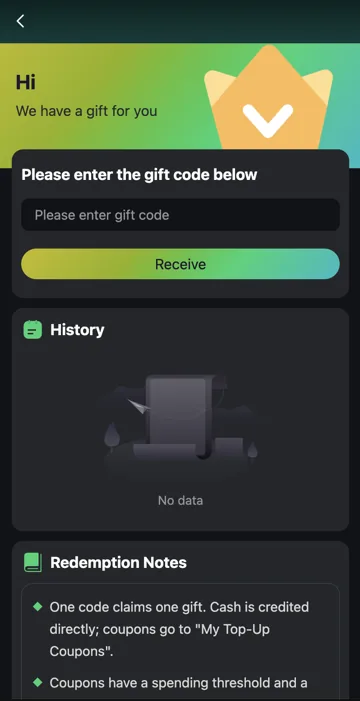
The gift form has one code field and a Receive button. Enter the code, check it carefully, then use Receive. Read the response before making another attempt. History is below the claim area and helps you review gift activity.
An empty History means there is no gift record listed there for that view. It is not a payment receipt. If a response is unclear, note the wording and check the appropriate reward location before submitting the same code repeatedly.
Cash credit and top-up coupons
The redemption notes distinguish cash credit from coupons. They explain that a code claims one gift, cash credit goes to the balance and coupons go to My Top-Up Coupons. That means a coupon reward may not appear as an immediate increase in the same balance.
Open the coupon details to check its spending threshold and expiry. A coupon can require an eligible top-up; its face value does not make it unrestricted cash. Read those conditions before deciding whether to use it.
Expired, used or ineligible codes
If a code is rejected, start with the actual message. Check typing, expiry and whether it was already used. Then check any account or campaign requirement. A code posted online may have expired or may apply to a different promotion.
This website does not list a verified active code. We do not run a code generator. Avoid anyone asking for a password, OTP or payment to activate a supposedly free gift.
Step-by-step
- Log in to your Veer Game account.
- Open Account and choose Gifts.
- Enter the gift code without extra spaces or copied labels.
- Select Receive and read the result message.
- Check History, then the balance or My Top-Up Coupons according to the reward type.
Where to check a gift reward
| Item | Where or what to check |
|---|---|
| Code entry | Account → Gifts → code field → Receive. |
| Previous gift activity | History in Gifts. |
| Cash credit | Account balance and relevant transaction record. |
| Coupon | My Top-Up Coupons and the individual coupon conditions. |
| Invitation code | Registration, rather than Gifts. |
Common questions
Where is the Veer Game gift code option?
Open Account and choose Gifts. The claim button is labelled Receive.
Why is my balance unchanged after a gift?
Check whether the reward is a coupon. Coupons are kept under My Top-Up Coupons and have separate conditions.
Does one code guarantee more than one reward?
The redemption notes say one code claims one gift. Check the campaign’s eligibility and expiry.
Related account help
Need more help?
Read the related articles below for more Veer Game account help. For a website correction, email trendzcollab08@gmail.com with the page address and a short explanation. Do not include passwords, verification codes or bank details.
External account access
These buttons open the external platform. Trendz Collab does not manage your account.

Written by Vacky
Vacky is a Trendz Collab writer with 10 years of content-writing experience. His topics include Veer Game login, registration, the app and game categories. Read our editorial approach.