Veer Game registration steps
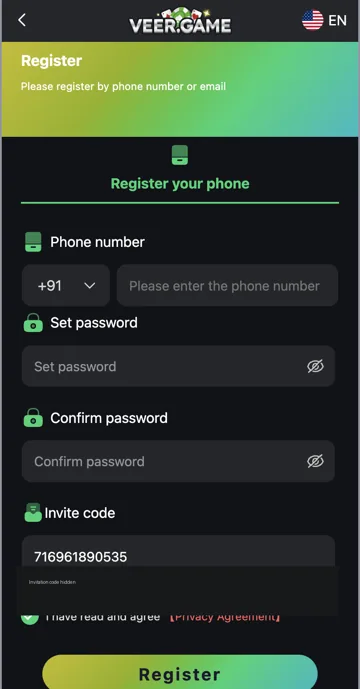
Open Register and choose the correct country code. Enter your phone number, set a unique password and repeat it in Confirm Password. Review the invitation code field and privacy agreement before deciding whether to submit the form.
Invitation code and existing accounts
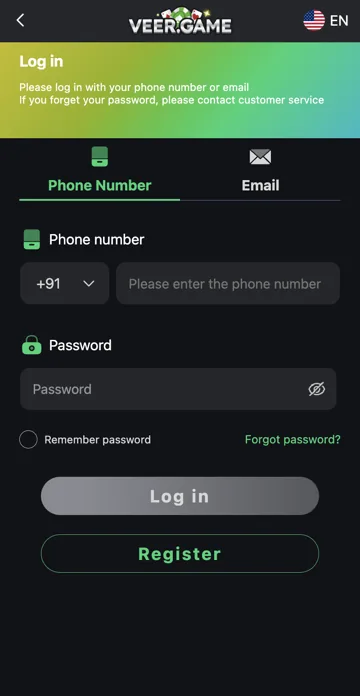
If your phone number already has an account, use Login or Forgot Password instead. Check any error message before submitting the registration form again.
Phone number and country code
The registration form has a country-code selector beside Phone number. Use a number you control and select its country code separately. Review the complete entry before submitting, especially if you pasted it from a contact or message.
Keep access to this number after registration. It can be needed for account verification or password recovery. Using another person’s number can leave you unable to prove control of the account later.
Set password and Confirm password
Set password creates the password for the account. Confirm password asks you to type the same password again. If they do not match, check capital letters, symbols and accidental spaces. The eye icons can help you compare the entries privately.
Use a password you do not use for email, banking or another gaming account. A password-strength rule may be displayed during entry; follow the current form’s instructions rather than guessing a required length from another website.
Invite code and privacy agreement
Invite code is separate from the phone number and password fields. A referral link may prefill it. Check that field before submitting if you intended to use a particular invitation. An invitation code is not a gift code; it belongs to registration, while gift redemption is in Account → Gifts.
Read the Privacy Agreement before deciding whether to accept it. The agreement is a link beside the consent control. Check its state yourself instead of assuming that opening the page means you agreed. Account creation does not establish that a reward is payable.
After registration
If registration succeeds, follow the platform’s response to reach your account or login page. Keep your registered contact details and password private. Check account recovery options before relying on a remembered browser login.
A first deposit offer is a separate promotion with its own eligible amount and claim conditions. Do not confuse completing the registration form with completing that promotion. If registration fails, read the exact error before trying again.
Step-by-step
- Open Register and check that you are on the intended Veer Game page.
- Select the country code and enter your own phone number.
- Enter a unique password in Set password.
- Type the same password in Confirm password.
- Review Invite code and read the Privacy Agreement.
- Decide whether to accept the agreement, then submit Register only if you wish to create the account.
Registration fields explained
| Field | What to enter or check |
|---|---|
| Phone number | Your own number, with the correct country code. |
| Set password | A unique password for this account. |
| Confirm password | The same password entered again. |
| Invite code | The invitation you intended to use, if applicable. |
| Privacy Agreement | Read the terms linked beside the consent control. |
Common questions
Are register, registration and signup different?
They describe the same account-creation task. Login is for an existing account.
Can I use a gift code in Invite code?
These serve different purposes. Invite code belongs to registration; gift codes are entered through Gifts.
What if my number already has an account?
Use Login or Forgot password to check access to that account.
Related account help
Need more help?
Read the related articles below for more Veer Game account help. For a website correction, email trendzcollab08@gmail.com with the page address and a short explanation. Do not include passwords, verification codes or bank details.
External account access
These buttons open the external platform. Trendz Collab does not manage your account.

Written by Vacky
Vacky is a Trendz Collab writer with 10 years of content-writing experience. His topics include Veer Game login, registration, the app and game categories. Read our editorial approach.